For the complete documentation index, see llms.txt. Markdown versions of all docs pages are available by appending .md to any docs URL.
Helm
Install standalone agentgateway as a Kubernetes Deployment with the standalone Helm chart.
Use the standalone Helm chart when you want the standalone agentgateway model, but you want Kubernetes to run and expose the process for you. The chart runs the same binary and reads the same configuration file that the binary and Docker installations use. You supply that file through Helm values, and the chart renders it into a ConfigMap that the proxy reads at startup.
Tip
This chart installs agentgateway as a single, unmanaged Kubernetes Deployment. You manage agentgateway config by upgrading the Helm values, and optionally by adding a PostgreSQL database so that you can edit the config in the UI. If you want a managed Kubernetes solution that includes a control plane and Gateway API resources, see Kubernetes control plane.
The chart creates the following resources. Each resource is named after the Helm release, which is agentgateway-standalone in these examples.
| Resource | Name | Purpose |
|---|---|---|
| Deployment | agentgateway-standalone | Runs the agentgateway proxy. |
| ConfigMap | agentgateway-standalone-config | Holds the rendered config.yaml, mounted read-only at /config. |
| Service | agentgateway-standalone | Exposes the gateway listener. Type LoadBalancer and port 80 to container port 4000 by default. |
| ServiceAccount | agentgateway-standalone | Identity for the proxy pod. |
If you installed with a different release name or namespace, adjust the resource names and the -n values in the commands throughout this documentation accordingly.
Before you begin
- Create or use an existing Kubernetes cluster.
- Install the following command-line tools.
Install
Install agentgateway with the database and Helm values that you want to use.
Create a namespace
Create the namespace that agentgateway and PostgreSQL share. The following example uses the default agentgateway-system namespace.
kubectl create namespace agentgateway-systemTo use a different namespace, such as agw, create that namespace instead and replace agentgateway-system in every command and value in this guide. Deploy PostgreSQL and its Secret in the same namespace as agentgateway, and make sure that the hostname in database.postgres.url matches that namespace. When you install the chart, also follow the Unique name and namespace tab to set namespaceOverride.
Set up a database
The chart does not install a database. The default readonly mode prevents UI saves. Database features, including LLM analytics, logs, and API key budgets, require a separate database. For the full list, see Features that need a database.
For production, use a managed PostgreSQL service or an operator that handles backups and failover. The following steps deploy a single instance for testing. To install without a database, continue to Create your Helm values.
Create a Secret for the database credentials. PostgreSQL and the proxy use the same Secret, keeping the password out of your Helm values.
This testing example creates the
agwuser with the passwordpassword. For a custom password, use only letters and numbers. The password becomes part of a connection URL, where characters such as@,:, and/have special meanings.kubectl create secret generic agentgateway-postgres \ -n agentgateway-system \ --from-literal=POSTGRES_USER=agw \ --from-literal=POSTGRES_PASSWORD='password' \ --from-literal=POSTGRES_DB=agwDeploy PostgreSQL with a PersistentVolumeClaim that uses your cluster’s default StorageClass. The volume preserves request logs and saved UI configuration when the PostgreSQL pod restarts.
kubectl apply -n agentgateway-system -f - <<'EOF'
apiVersion: v1
kind: PersistentVolumeClaim
metadata:
  name: postgres-data
spec:
  accessModes:
  - ReadWriteOnce
  resources:
    requests:
      storage: 1Gi
---
apiVersion: apps/v1
kind: Deployment
metadata:
  name: postgres
spec:
  replicas: 1
  strategy:
    type: Recreate
  selector:
    matchLabels:
      app: postgres
  template:
    metadata:
      labels:
        app: postgres
    spec:
      containers:
      - name: postgres
        image: postgres:16-alpine
        envFrom:
        - secretRef:
            name: agentgateway-postgres
        env:
        - name: PGDATA
          value: /var/lib/postgresql/data/pgdata
        ports:
        - containerPort: 5432
        readinessProbe:
          exec:
            command: ["sh", "-c", "pg_isready -U \"$POSTGRES_USER\" -d \"$POSTGRES_DB\""]
          periodSeconds: 5
        volumeMounts:
        - name: data
          mountPath: /var/lib/postgresql/data
      volumes:
      - name: data
        persistentVolumeClaim:
          claimName: postgres-data
---
apiVersion: v1
kind: Service
metadata:
  name: postgres
spec:
  selector:
    app: postgres
  ports:
  - port: 5432
    targetPort: 5432
EOF
Verify that PostgreSQL is ready and its PersistentVolumeClaim is
Bound. The pod becomes ready when PostgreSQL accepts connections.kubectl rollout status deploy/postgres -n agentgateway-system kubectl get pvc postgres-data -n agentgateway-systemExample output:
deployment "postgres" successfully rolled out
NAME            STATUS   VOLUME                                     CAPACITY   ACCESS MODES   STORAGECLASS   AGE
postgres-data   Bound    pvc-32a0dca7-4ddd-458c-85a4-1b1b9d37140c   1Gi        RWO            standard       13s
If the claim stays
Pending, check whether your cluster has a default StorageClass. To select a StorageClass, setspec.storageClassNamein the PersistentVolumeClaim. Alternatively, use a managed PostgreSQL service.
Create your Helm values
Create a values.yaml file that holds your agentgateway configuration. The chart renders the config value into the proxy configuration file.
Point the chart at the database that you deployed in the previous step.
cat <<'EOF' > values.yaml
mode: database
database:
  postgres:
    url: postgres://agw:${POSTGRES_PASSWORD}@postgres.agentgateway-system.svc.cluster.local:5432/agw
extraEnv:
- name: POSTGRES_PASSWORD
  valueFrom:
    secretKeyRef:
      name: agentgateway-postgres
      key: POSTGRES_PASSWORD
config:
  gateways:
    default:
      port: 4000
  llm:
    providers: []
    models: []
    virtualModels: []
  mcp:
    targets: []
EOF
Review the following table to understand this configuration.
| Setting | Description |
|---|---|
mode | Set to database to save UI changes in PostgreSQL. The ConfigMap remains a read-only baseline. The chart sets config.storage.mode to hybrid and derives config.database.url from database.postgres.url. Do not set these fields in config. See Configuration storage. |
database.postgres.url | PostgreSQL connection URL. Use postgres:// or postgresql:// and the postgres Service in the release namespace. The ${POSTGRES_PASSWORD} reference keeps the password out of the ConfigMap. Startup logs contain the resolved URL, including the password. Limit access to pod logs. |
extraEnv | Sets the proxy container’s POSTGRES_PASSWORD environment variable from the PostgreSQL Secret. |
config.gateways.default.port | The port of the default gateway. The Service that the chart creates sends traffic to port 4000. |
config.llm, config.mcp | Define these sections to add LLM providers, models, and MCP servers in the UI. In database mode, the UI can add resources to existing sections, but cannot create sections. See Sections must exist in the file. |
Install the chart
Install the standalone Helm chart with your values file.
helm upgrade -i agentgateway-standalone \
  oci://cr.agentgateway.dev/charts/agentgateway-standalone \
  --namespace agentgateway-system \
  --version  \
-f values.yamlVerify the installation
Verify that the agentgateway pod is running.
kubectl get pods -n agentgateway-system \
  -l app.kubernetes.io/name=agentgateway-standalone
Example output:
NAME                                       READY   STATUS    RESTARTS   AGE
agentgateway-standalone-6d5dc56bdb-792pt   1/1     Running   0          30s
If the pod logs show
failed to connect postgres database, the proxy cannot reach PostgreSQL. If PostgreSQL is not ready, the proxy retries for about 30 seconds, then exits. If the hostname does not resolve, the proxy exits immediately. Either way, Kubernetes restarts the pod. Check that the PostgreSQL pod is ready. The hostname indatabase.postgres.urlmust match the namespace of thepostgresService.Review the configuration that the chart rendered into the ConfigMap.
kubectl get configmap agentgateway-standalone-config \
  -n agentgateway-system -o jsonpath='{.data.config\.yaml}'
With PostgreSQL, expect
storage.mode: hybridand a database URL that contains the literal${POSTGRES_PASSWORD}reference. The proxy resolves the reference at startup.Without a database, expect
storage.mode: fileand nodatabasefield.Example output with PostgreSQL:
config:
  database:
    url: postgres://agw:${POSTGRES_PASSWORD}@postgres.agentgateway-system.svc.cluster.local:5432/agw
  storage:
    mode: hybrid
gateways:
  default:
    port: 4000
llm:
  models: []
  providers: []
  virtualModels: []
mcp:
  targets: []
If you use PostgreSQL, verify that the database tables exist. The proxy creates the tables on first startup without a separate migration.
kubectl exec -n agentgateway-system deploy/postgres \
  -- psql -U agw -d agw -c '\dt'
Expect the following tables, including
request_logsfor LLM logs andagw_config_resourcesfor UI configuration changes:List of relations Schema | Name | Type | Owner --------+--------------------------------------+-------+------- public | _agentgateway_request_log_migrations | table | agw public | agw_config_resources | table | agw public | budget_usage | table | agw public | request_log_payloads | table | agw public | request_logs | table | agw (5 rows)
Open the UI
For quick access to the UI, port-forward the agentgateway-standalone Deployment and open the /ui path.
Port-forward the admin interface.
kubectl port-forward -n agentgateway-system \
  deploy/agentgateway-standalone 15000:15000
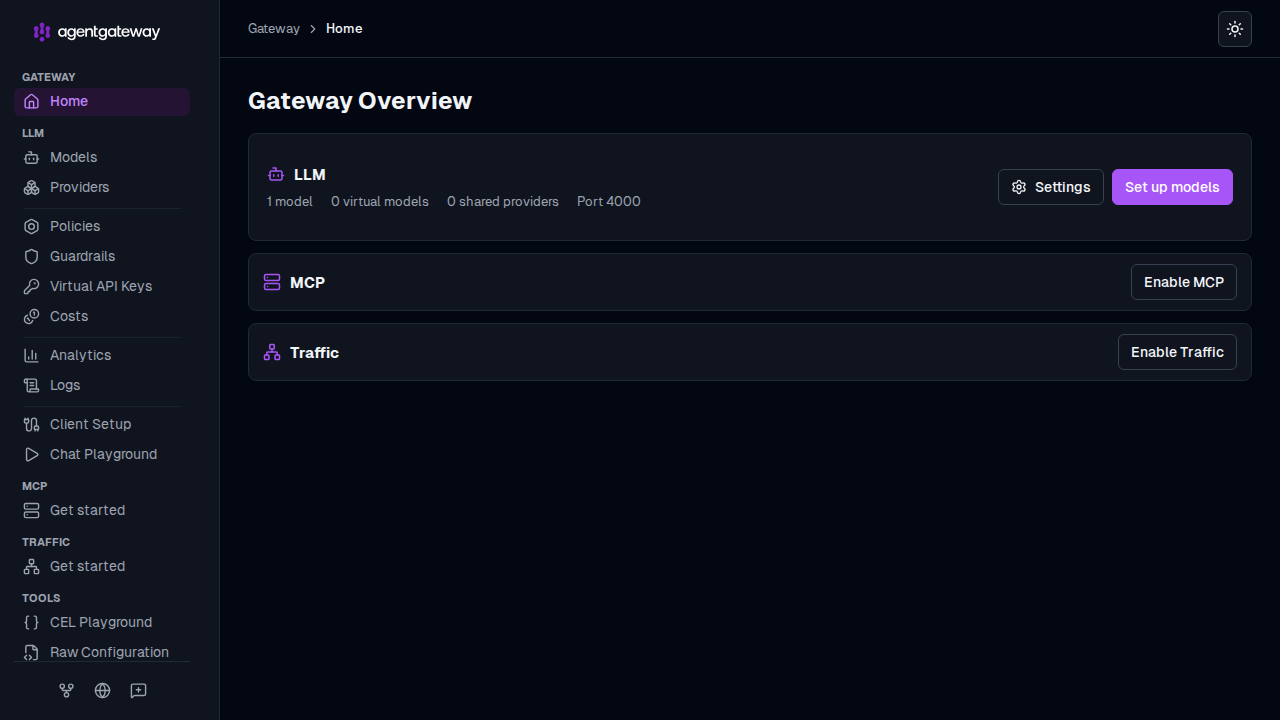
In your browser, open the
/uipath: http://localhost:15000/ui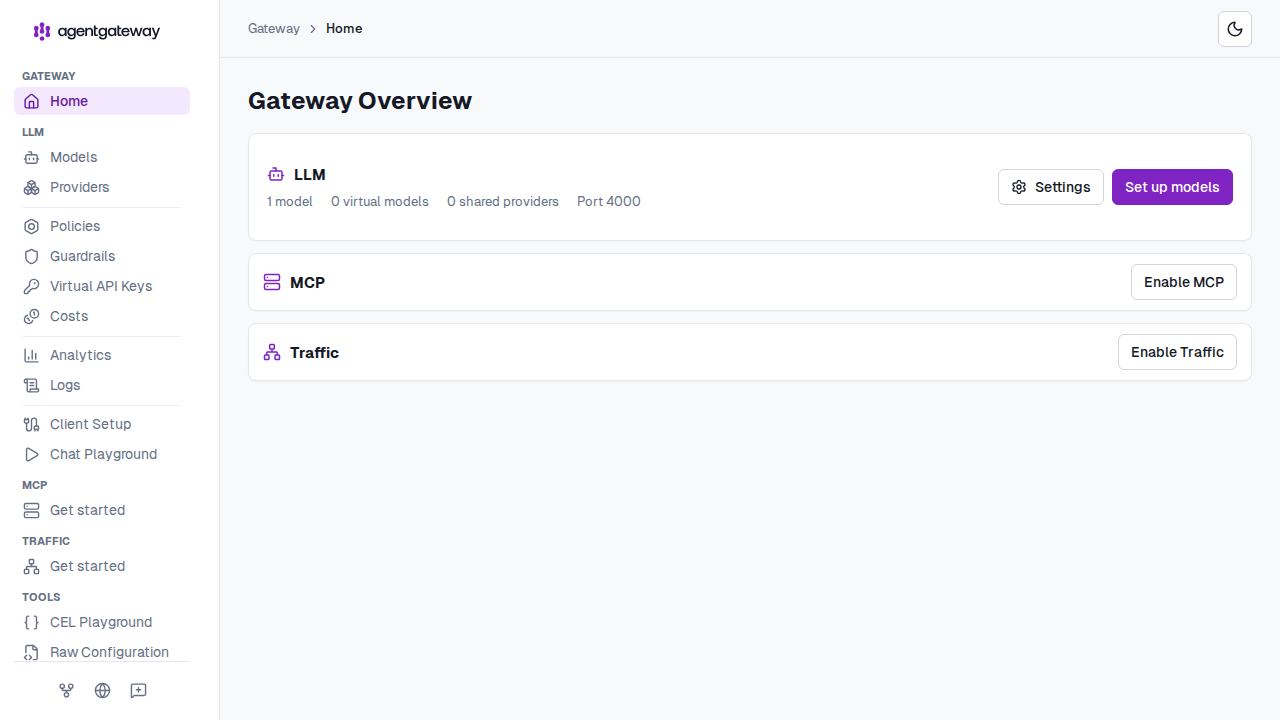
Check whether the UI can save changes.
curl -s http://localhost:15000/api/runtime | jq '.ui.configStoreMode'Expect
hybridfor PostgreSQL storage. In the chart’sreadonlymode, the result isfile, and UI saves fail.Example output:
"hybrid"
A port-forward is a quick way to look at the UI on a cluster. To give the UI its own gateway so that you can reach it without one, secure it with OIDC, and expose it on your own hostname, see UI.
Common Helm values
Review the following table to understand this configuration. For more information, see the Helm reference docs.
| Value | Use |
|---|---|
replicaCount | Run more than one proxy pod. |
monitoring.enabled | Create a PodMonitor and expose the metrics port for Prometheus Operator. |
extraEnv, extraVolumes, extraVolumeMounts, extraContainers | Add environment variables, mount secrets, or run sidecars. |
imagePullSecrets | Pull the proxy image from a private registry. |
image.registry, image.repository, image.tag | Pull the proxy image from another registry, such as an internal mirror. |
Uninstall
Uninstall the Helm release.
helm uninstall agentgateway-standalone -n agentgateway-systemRemove the namespace.
Warning
This command deletes all resources in the namespace. If you deployed PostgreSQL there, the command also deletes its PersistentVolumeClaim and stored data.
kubectl delete namespace agentgateway-system
Next steps
- Set up the UI to give the UI its own gateway and secure it with OIDC.
- Add configuration in the UI and verify that it persists across restarts.
- Verify request logging by sending an LLM request.
- Update your configuration by upgrading your Helm values.
- Upgrade agentgateway to a new chart version.