For the complete documentation index, see llms.txt. Markdown versions of all docs pages are available by appending .md to any docs URL.
Docker
Install and run agentgateway as a Docker container, on its own or with Docker Compose.
To run agentgateway as a container, follow the steps to start the container, verify that it runs, and open the UI. Agentgateway publishes the official images at cr.agentgateway.dev/agentgateway.
Run the container
Start the container
You can either mount a directory and let agentgateway create a configuration file in it, or mount a configuration file that you wrote yourself.
Mount a writable directory at the /config path. Agentgateway generates a default configuration in the config.yaml file in that directory on the first start, and creates a SQLite database alongside it.
mkdir agentgateway-config
docker run -d \
  --name agentgateway \
  --user "$(id -u):$(id -g)" \
  -v "$PWD/agentgateway-config:/config" \
  -p 4000:4000 \
  cr.agentgateway.dev/agentgateway:latest-dev
The --user flag lets the container read and write the mounted directory as your user. The generated configuration includes a SQLite database and serves the UI on the default gateway. The database stores LLM analytics, logs, and other runtime data. For details, see Database.
The generated configuration looks like this:
# yaml-language-server: $schema=https://agentgateway.dev/schema/config
config:
  database:
    url: sqlite:///config/data.db
gateways:
  default:
    port: 4000
ui:
gateways: defaultVerify that the container runs
Check the status of the container.
docker ps --filter name=agentgatewayExample output:
CONTAINER ID   IMAGE                                         COMMAND               CREATED         STATUS         PORTS                                         NAMES
8bac1aad45ba   cr.agentgateway.dev/agentgateway:latest-dev   "/app/agentgateway"   5 seconds ago   Up 4 seconds   0.0.0.0:4000->4000/tcp, [::]:4000->4000/tcp   agentgateway
Find the UI address
Check the logs. Agentgateway logs which configuration file it loaded and where it serves the UI.
docker logs agentgatewayExample output:
info	state_manager	loaded config from File("/config/config.yaml")
info	state_manager	Watching config file: /config/config.yaml
info	app	serving UI at http://localhost:4000/ui
info	proxy::gateway	started bind	bind="bind/4000"
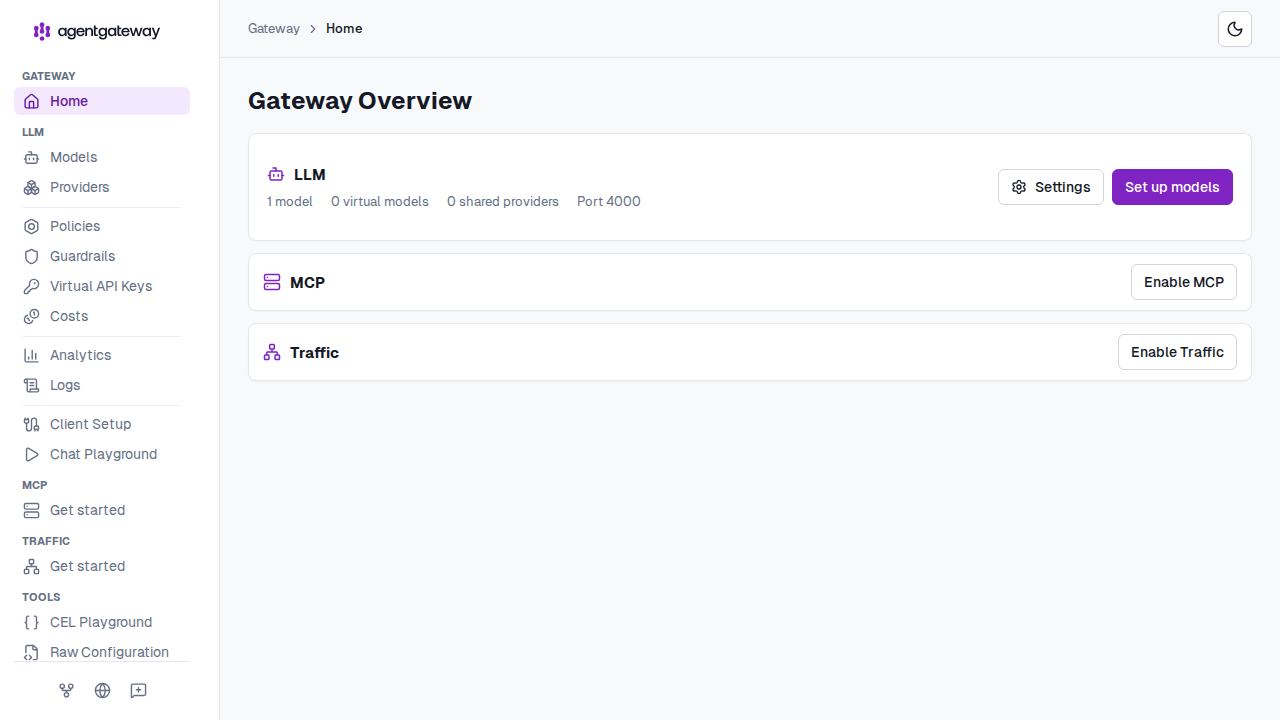
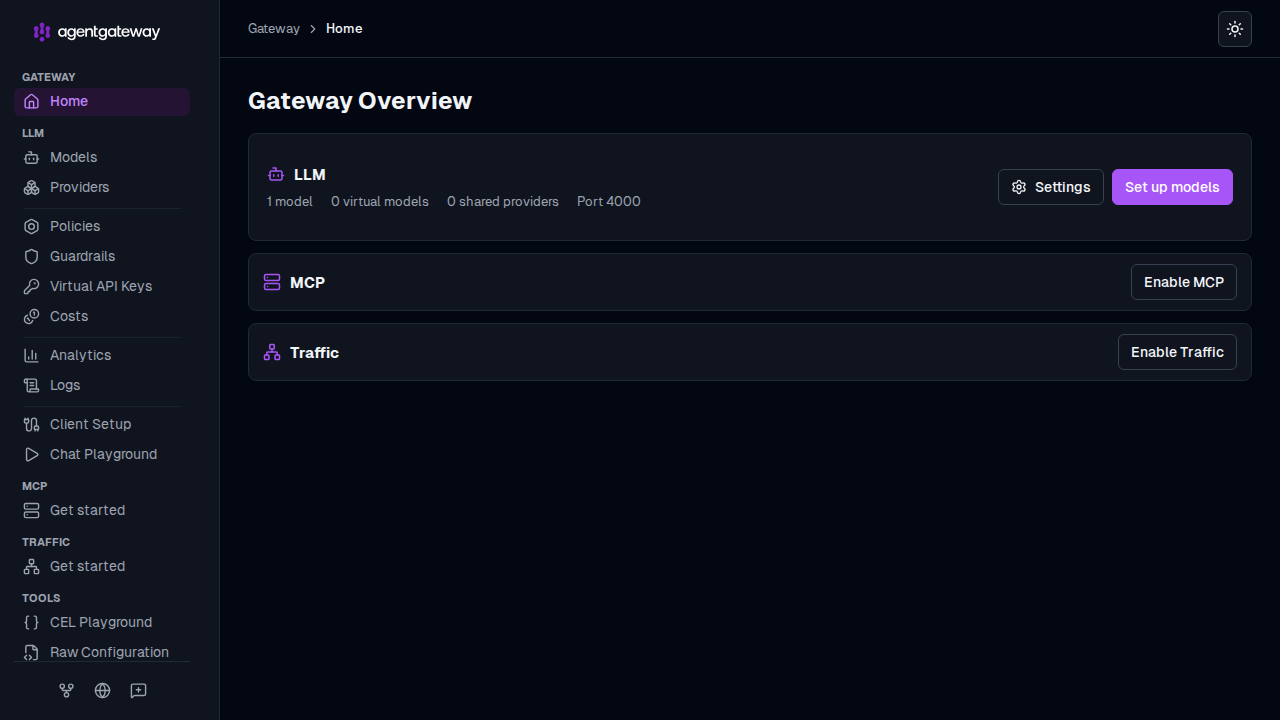
Open the UI
Open the address from the log output, such as http://localhost:4000/ui, to get started.
Run with Docker Compose
Docker Compose follows the same approach as the docker run command.
Create the Compose file
Create a compose.yaml file. The user value must be your own user and group IDs so that the container can write to the mounted directory.
services:
  agentgateway:
    container_name: agentgateway
    restart: unless-stopped
    image: cr.agentgateway.dev/agentgateway:latest-dev
    # Replace with your user and group IDs, such as the output of: id -u && id -g
    user: "1000:1000"
    ports:
      - "4000:4000"
    volumes:
      - ./agentgateway-config:/config
Start the service
Create the configuration directory and start the service. Agentgateway generates a configuration file in the directory on the first start.
mkdir agentgateway-config
docker compose up -d
Verify that the service runs
Check the status of the service.
docker compose psExample output:
NAME           IMAGE                                         COMMAND               SERVICE        CREATED         STATUS         PORTS
agentgateway   cr.agentgateway.dev/agentgateway:latest-dev   "/app/agentgateway"   agentgateway   9 seconds ago   Up 8 seconds   0.0.0.0:4000->4000/tcp, [::]:4000->4000/tcp
Open the UI
Open http://localhost:4000/ui to get started.
Cleanup
Stop and remove the container.
docker rm -f agentgatewayAgentgateway leaves the configuration file and the SQLite database in the mounted directory. If you do not want to keep them, remove the directory too.
Next steps
- Set up the UI to open, expose, and secure the web interface.
- Set up a database for the Analytics and Logs pages, and for API key budgets.
- Choose where configuration is stored.
- Update your configuration after the container is running.
- Upgrade agentgateway to a new image tag.